 A slow and lazy computer is no less than an irritating spot to work in. Most of you may have spent hundreds of dollars in the maintenance and optimization of your Desktop computers but in the end hopelessness is what you get. Many softwares have been created to help you boost your computer speed but they too often fail to solve this problem. Today I will share some tips and tricks [TNT] that will accelerate your computer's performance to 100%. These are not just ordinary tips and tricks that you find in internet but these are the practical ways and most effective ways of boosting up your computer speed. These TNT have made me love my computer and work on it for hours with comfort and fun. I am now in love with my Pentium-3 computer, which now works much faster than Pentium-4 :D
1. Adjust Your Computer For best Performance
What do you prefer most, appearance or performance? If I heard you say performance then do the following:Go to
- Start Menu
- Right click my computer
- Click properties
- A window will open, click the "advanced" tab as shown below

Under Performance click settings, as shown above.
Another window will open as shown below,

Go to
- Start Menu
- Click on Run
- A window will open up , write msconfig in it, as shown below,

A new window will open as shown below,

There are many options as you can see above, we will concentrate on "Load system services" and "Load Startup Items" in detail.
Choose the option "Selective Startup"
In the Square White boxes, check all except "Process Win.INI File"
Now click the "Services tab" above and a screen will open as shown below,


Uncheck all those services that you don't want to open automatically when you Start Your Computer. In my case I have unchecked all except Anti-Poisoner, without which I will not be able to "Browse" the internet. If you don't know what to do, simply uncheck all boxes.
Click apply, a window will open, asking you to restart your computer for changes to take effect--->>> Click Ok. After restart you will observe that your System loaded in seconds with only two to three Startup items as shown below,

Each time you visit a website your browser stores some files e.g: Images from that website onto you Drive C [Your System Drive], so that next time you visit that website the browser will open it quickly. To delete all such temporary internet files stored onto your Drive C, we will use a software called "Disk Cleanup". This software is already installed on every WinXP so you don't need to download it. Do the following,
- Start Menu
- Click All Programs
- Click Accessories
- Click System Tools
- Finally Click Disk Cleanup

Select Drive C and click OK, another window will open,

4. Always use "Add or Remove Programs" utility to delete unwanted programs
When ever you uninstall/delete a program always use the "add or remove" utility. This utility will remove/delete every bit of the program without leaving any traces behind. Confused???? Let me explain. When you delete a program just by right clicking on it and selecting delete Or by clicking on the program and then pressing "Shift + Del" key, you only delete 95% of the program from your hard disk, the remaining 5% dwell in your hard disk, occupying a precious space, thus leading to slow computer speed. To delete your unwanted programs the right way, do the following:
- Start Menu
- Click Control Panel
- A window will open, there you will find the " Add or remove Program" icon, double click the icon
A new window will open as shown below

To delete a program, just click the program and then click "Remove". This way you will keep your computer clean and active.
5. Defragment your Drives Once a week
The files on your Hard disk due to regular use often break down or become fragmented. This can cause your system to run more slowly and encounter several processing problems. For instance, a computer program must access various files on your hard drive every time you try to run it. If those files are spread out on your hard drive instead of gathered and organized neatly, your computer will have to work extra hard and take extra time to access the information it needs. The solution to this problem is Defragmenting.
- Start Menu
- Click All programs
- Click Accessories
- Click System Tools
- Finally Click "Disk Fragmenter"
A utility will open as shown below

The Analyze key will tell you whether or not your selected drive needs defragmenting or not.
Always analyze your drive before defragmenting it, because defragmenting a drive can take hours depending on your disk size.
Defragment your drives once every week. Do this and see the difference in your PC performance.
6. Improving loading speed of "My computer"
When you click on my computer it often takes 4-5 seconds to open, to reduce this delay time to zero, do the following:
Click my computer to open it. Once "my computer window" opens, click on "Tools" Tab then click on "Folder Options" as shown below,

Another window will open, click on "View" tab as shown below,

- Adobe Generator
- Adobe Lightroom
- Adobe Edge Reflow CC
- Adobe Bridge
- Behance
Other Software of the series:
What’s New in Photoshop CC 2014
Camera Shake Reduction
Smart Sharpen
Perspective Warp
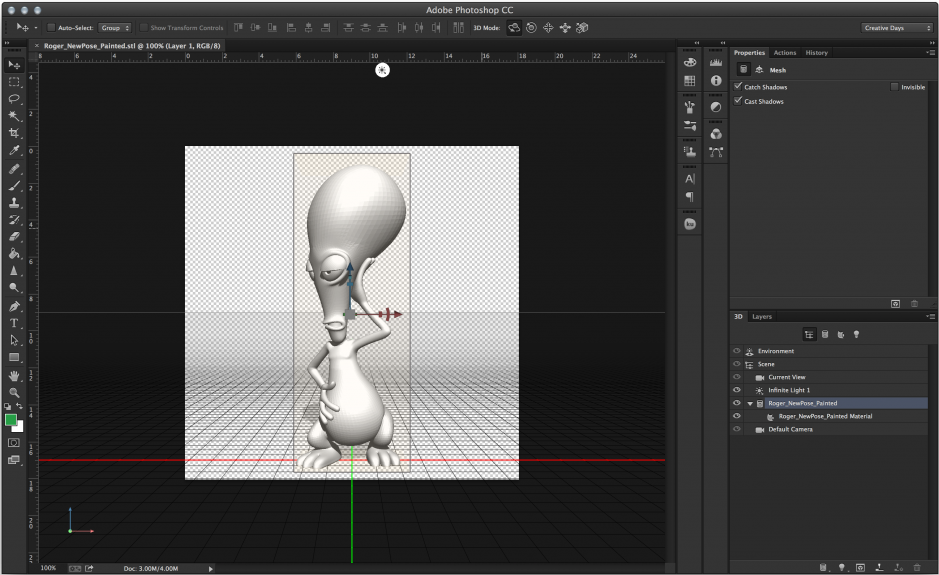
3D Printing
Smart Image Resolution Upgrade
Enhanced Web Graphics Designer and CSS Generator
Smart Video Creation
Faster Performance
Details
Minimum System Requirements
Screenshots
Download
Free download the latest Cracked VersionofAdobe Photoshop CC 2014 32 bit & 64 bitfrom the following link:
http://bit.ly/UetLyV
Free Download Adobe Photoshop CC 2014 Cracked For Mac OS X


)
0 comments:
Post a Comment